


Follow these steps to complete payment and verification.
Tap the blue-purple Scan button in the center of the bottom menu.
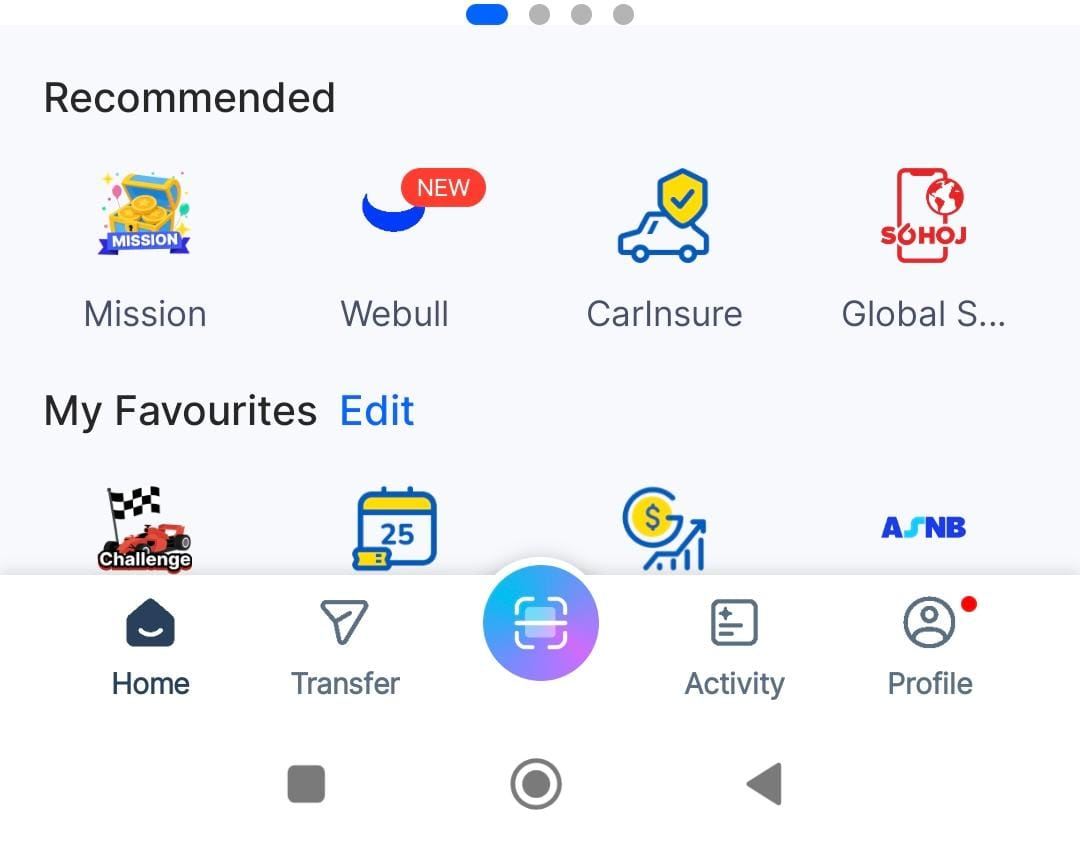 Click to enlarge
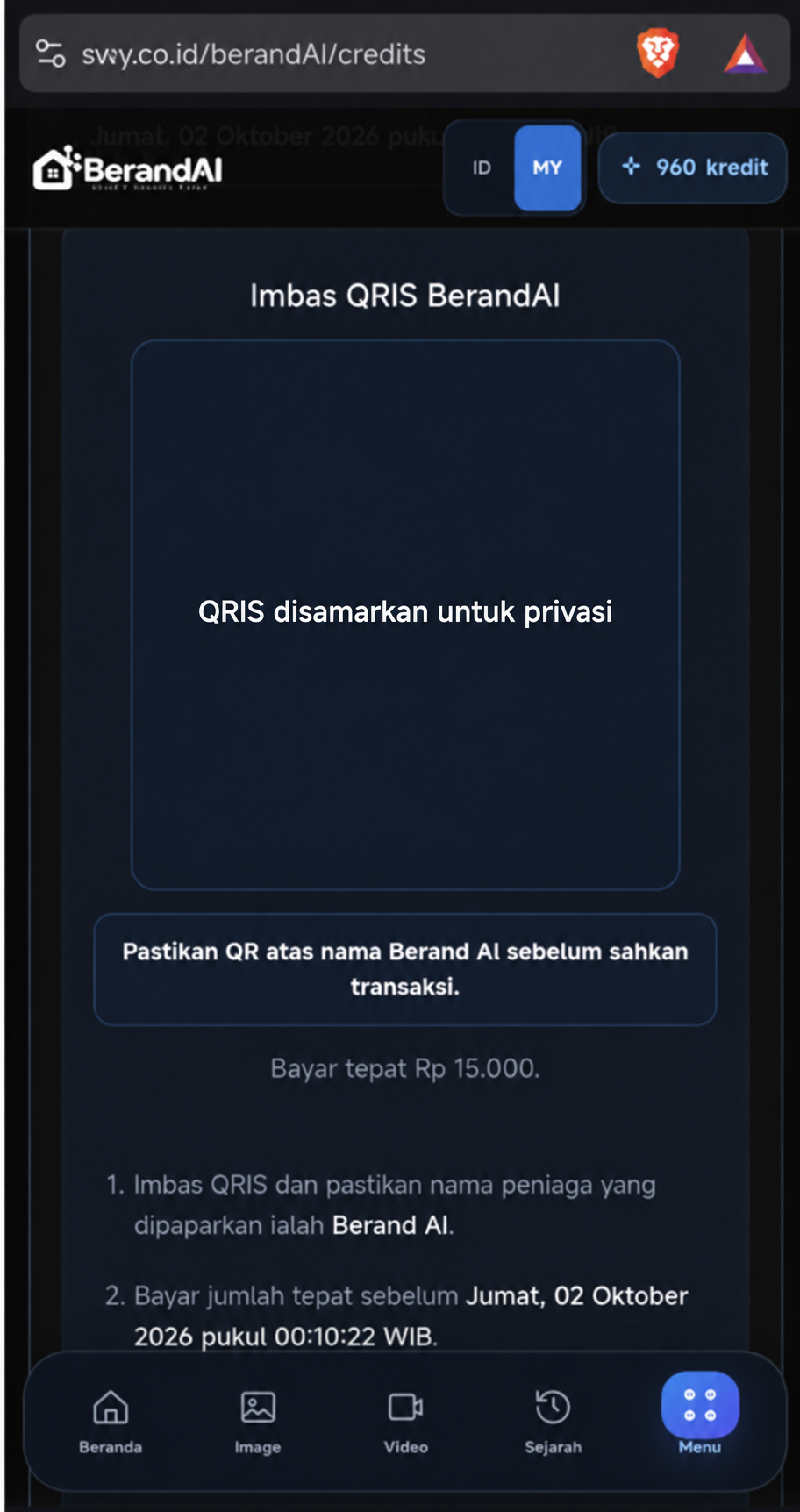
Point your camera at the QRIS code on the invoice page. The code in the tutorial image is obscured for privacy.
 Click to enlarge
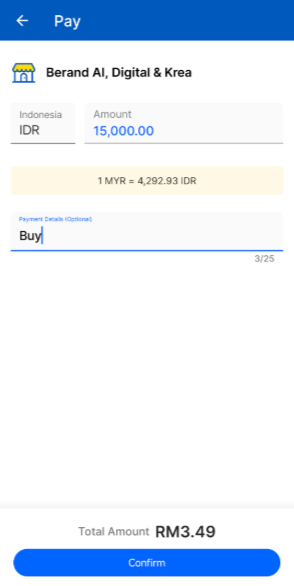
Confirm the merchant is Berand AI, Digital & Krea. Check the IDR amount and MYR conversion, then tap Confirm.
 Click to enlarge
Keep the app open until it confirms that your payment was sent.
 Click to enlarge
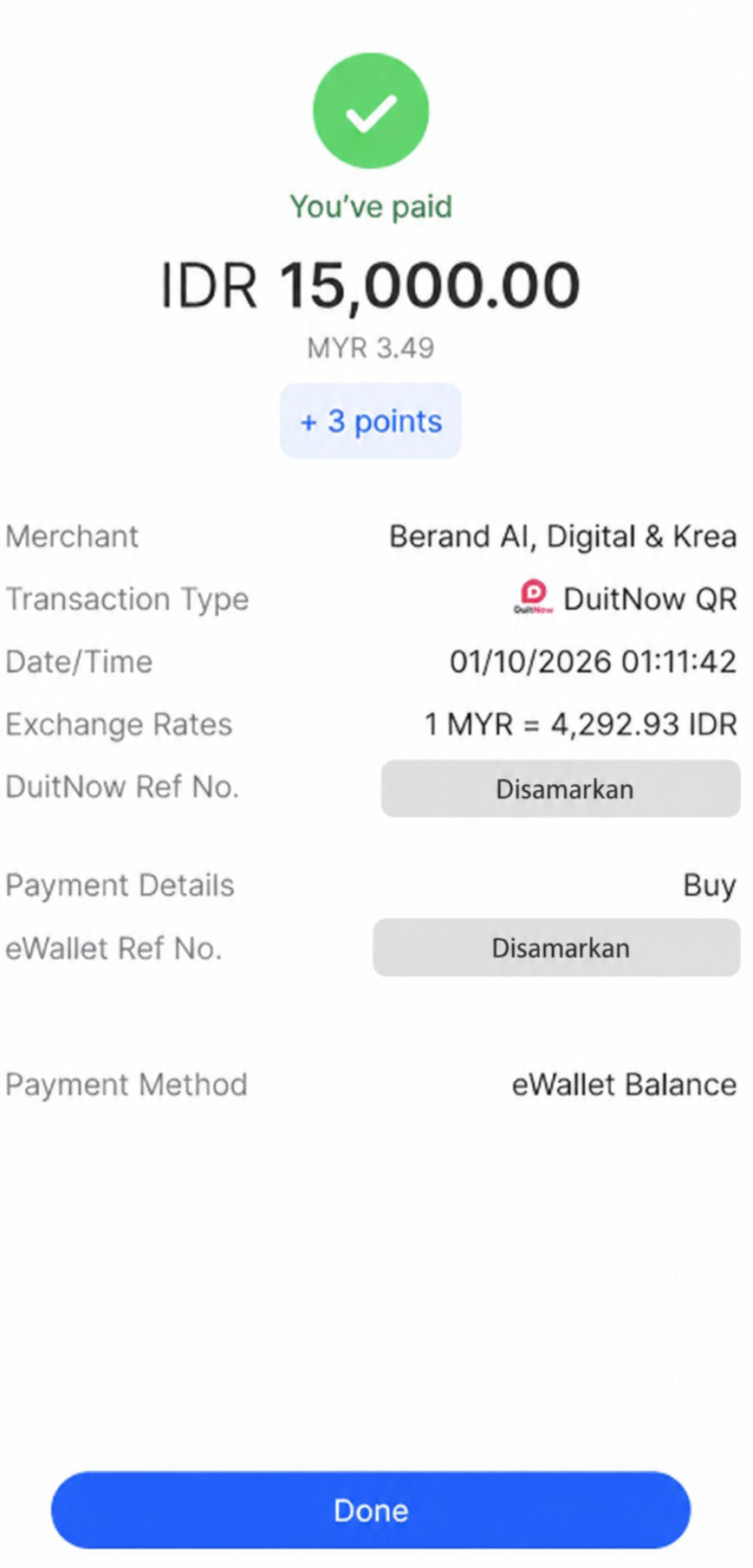
Confirm the “You’ve paid” status and the amount. Take a screenshot of the proof; the reference number in this example is obscured.
 Click to enlarge
Return to your BerandAI invoice, upload the payment screenshot, then tap Contact Customer Service.
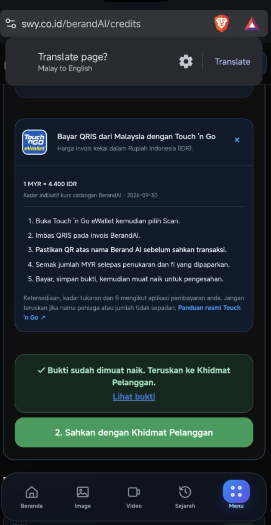 Click to enlarge